Creating Discovery Metadata
This section will guide the user through the process of creating discovery metadata records in the Natural Resources Wales Metadata catalog. Discovery metadata can be added to the portal by importing an existing metadata XML file, creating a new record from a template, duplicating an existing record, or harvesting records from other metadata portals.
Importing existing metadata
To import an existing XML metadata record:
1| Click the
button in the header menu and choose
. This will take the user to the Import new records menu board.
2| Select where to import the record from. Options are from your computer (default), a URL, by copy/paste, or from a server.
3| Select Metadata from the type of record dropdown.
4| Indicate how the unique identifier for the record (UUID) should be treated. If you are uploading in order to refine or change an existing record, then choose the Overwrite metadata with the same UUID option. If you are uploading to create a new metadata record then choose the Generate UUID for inserted metadata option. If the XML contains a UUID that does not already exist on the portal but you would like to keep this UUID then the None option should be selected.
Note: The UUID is a generated automatically by whatever internal system (i.e. ESRI ArcGIS) was used to write and manage your metadata. In xml, it can be found at the top of the page under the file identifier section. Within the portal, the UUID or File Identifier can be found at the bottom of the metadata record display. This UUID, together with the metadata date stamp, are used to ensure records are unique within Natural Resources Wales Metadata catalog, data.gov.uk and other metadata catalogues. If you need to change your URI from External or Internal please contact the Data Discovery Administrator.
5| Under the Apply XSLT conversion menu, select the appropriate translation to convert the metadata to the UK Gemini format.
Note: For an xml file that is already in Gemini 2.3 format and recognised as such *the Apply XSLT conversion option can be set to ‘None’. Select ‘GEMINI 2.2 to GEMINI 2.3’ to convert an existing Gemini 2.2 record to 2.3, select ‘ESRI to GEMINI 2.3 to convert records created using the ESRI ArcGIS platform. Users providing data in MEDIN format should select the MEDIN to GEMINI conversion.
6| Optionally, select whether to validate the record on import.
Note: it is recommended that the validate option be left un-ticked, and users perform a validation of the record after import. If the validation option is ticked and an error is found, the record will fail to import.
7| Optionally, select whether to publish the record on import.
8| Assign the record to a user group.
9| Assign the record to the appropriate licence type (i.e. OGL, NCGL, INSPIRE or other). This will allow for filtered searching based on the licence conditions.
Note: Licence types can also be amended at a later date. See assigning a licence category.
10| Click the
button.
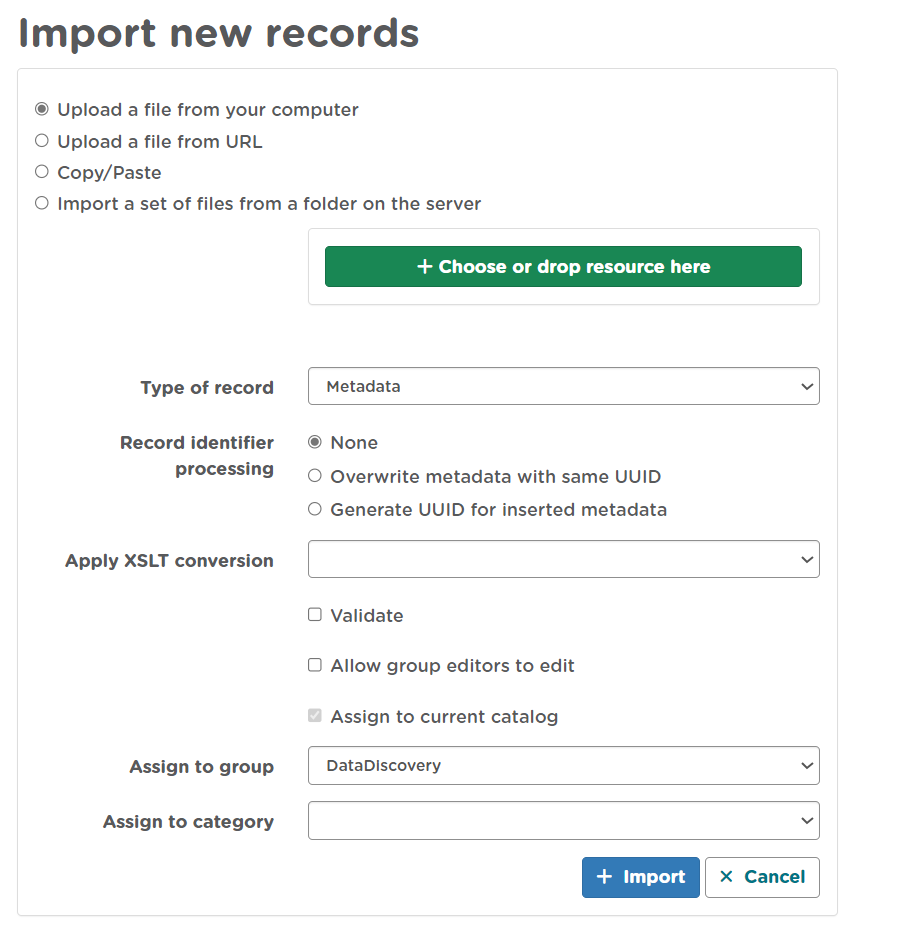
Figure 5.1.1: Importing an existing XML metadata record
When the import operation has finished, an Import Report will be displayed on the right-hand side of the screen, indicating whether or not the import has been successful. Following a successful import, users should verify that their records are valid. Consult the Validating metadata section for details. Amendments to the record may be required to make it fully Gemini compliant.
Creating metadata from a template
Data Discovery has multiple templates available to assist in the creation of metadata. This include templates for physical/paper data records, Third Party datasets and geospatial datasets. The recommended template for most NRW datasets will be Template for Dataset Metadata in NRW 1.0 format.
To create a metadata record using an available template:
1| Click the button in the header menu.
2| Click the  button. This will enable the Editor board, where all records the user has access to will be listed.
3| Click the  button.
4| Click on the template you would like to use.
5| Add which roup you would like the metadata to belong. This should be Natural Resources Wales for all records.
6| All metadata records in Data Discovery need a Unique Resource Identifier (URI). To generate your datasets URI you will need to select if the dataset is an Internal Record or for datasets that are not owned by NRW select External Record. You can then copy the number found in the Next Available Identifier box in the Unique Resource Identifier box.
Note:You can not use a URI that has already been used before and please do not add your own identifier. If you need any assistance then please contact opendata@cyfoethnaturiolcymru.gov.uk.
7| Click the  button to create the new record. This will automatically take the user to the editing view where elements of the new record can be modified. See Editing a metadata record for guidance on documenting the resource.
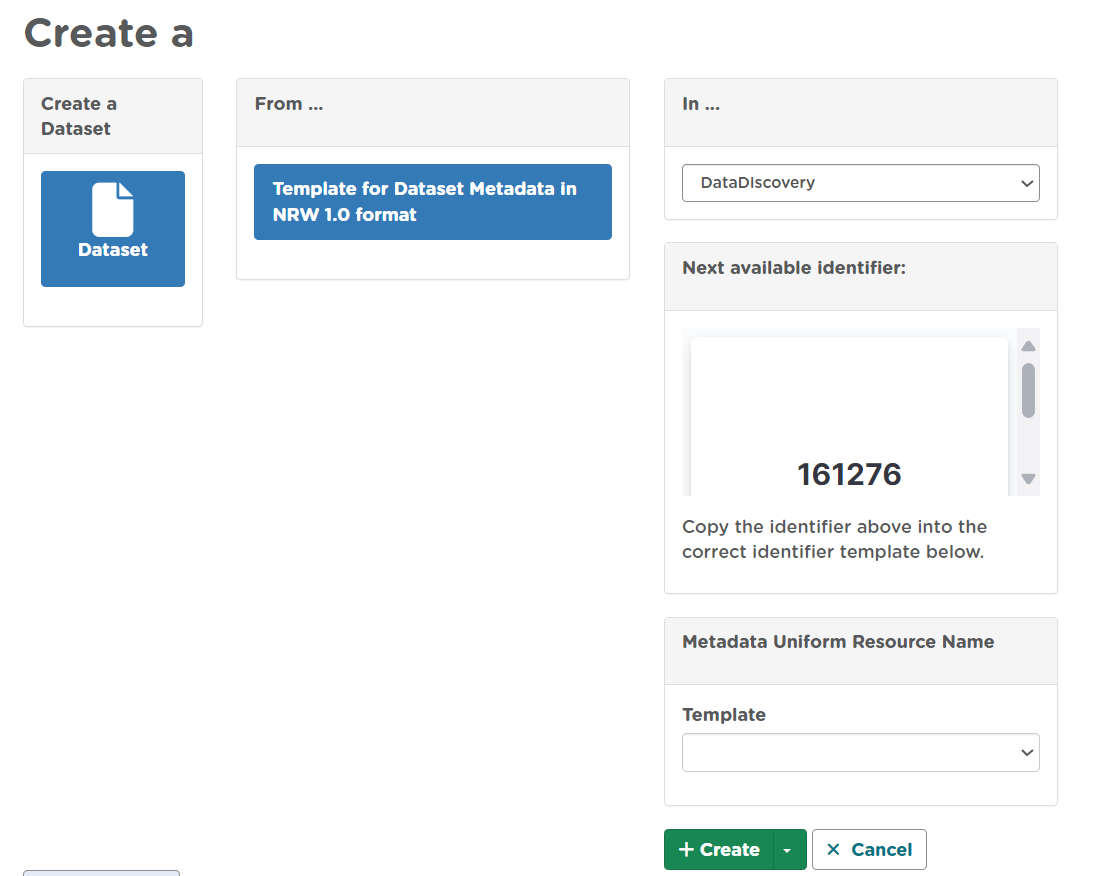
Figure 5.2.1: Creating a metadata record from a template
Duplicating existing metadata
One of the easiest ways to create metadata on the portal is to duplicate an existing record. This is particularly useful for organisations where many of the metadata elements are the same for all records (e.g. points of contact, etc.)
To create a metadata record by duplicating an existing record:
1| Click the
2| Click the
3| Click the duplicate icon (
) next to the record name.
4| Click the
Note: if the user is an editor for multiple groups or an administrator to the site, they will be required to select which group to assign the duplicate metadata record to.
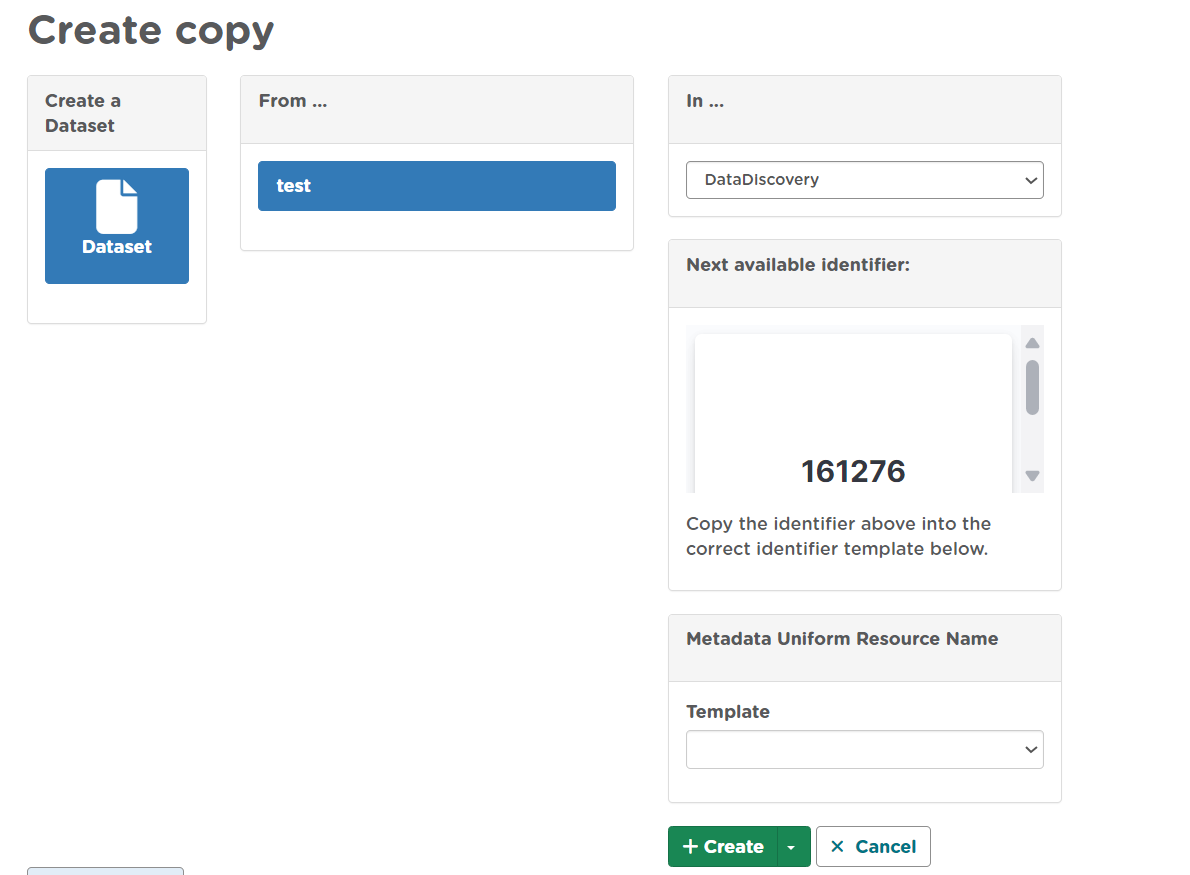
Figure 5.3.1: Duplicating an existing metadata record
Harvesting metadata
Natural Resources Wales Metadata has the capability to automatically consume metadata from external services on a scheduled basis. Organisations that maintain their own spatial data portals which are interested in having their records automatically harvested should contact Natural Resources Wales.
Creating directory metadata
Directory records are a means of automatically populating fields such as those for the point of contact section of a metadata record with pre-written values. This is useful if you have to create multiple records that share the same point of contact.
To create a directory entry:
1| Click the
2| Click the
from the contribute drop down. This will bring the user to the manage directories page.
3| On the entries tab are previously created directory entries. Under the Actions drop menu of each record, users can choose to edit or duplicate an existing record. Alternately, users can create a blank directory entry using a template by first clicking on the Templates tab, and then choosing duplicate from the Actions menu of the ‘TEMPLATE TO DUPLICATE’ entry.
4| Amend the entry as appropriate and click
to save changes.
5| Click
to save and exit.
Note: This functionality is for Administrators only and users should contact opendata@cyfoethnaturiolcymru.gov.uk if they want a new directory added.
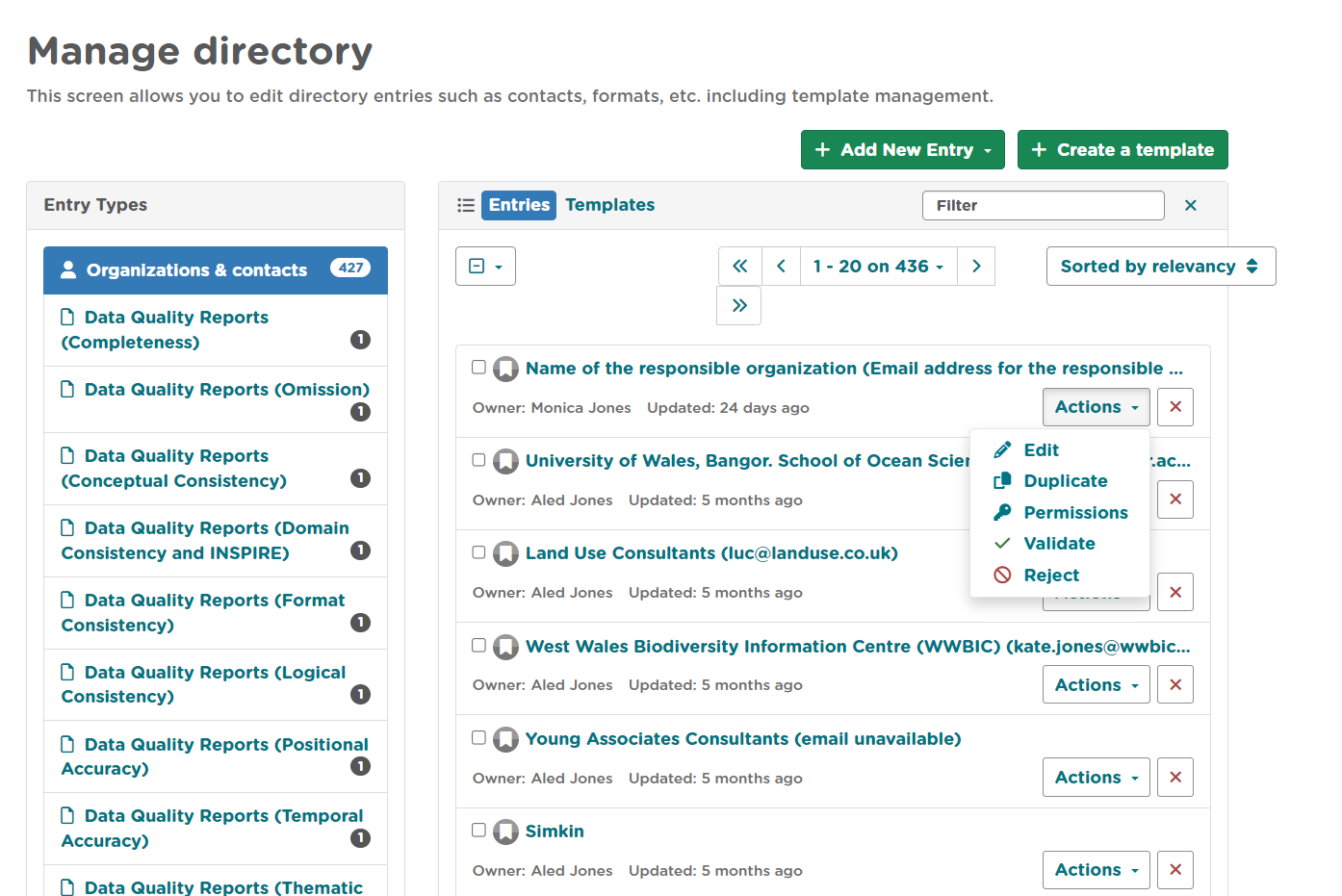
Figure 5.5.1: Creating a directory entry